Why Minecraft Server IP Lists Show Different Player Counts
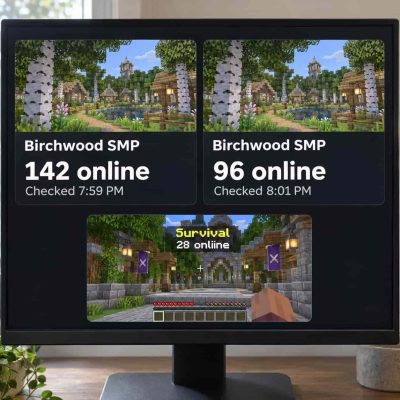 You find the same server in two directories. One Minecraft server IP list says 142 players are online. The other says 96. Then you join the Survival lobby and see 28. Each number could make sense. The directories may have checked at different times, one may be showing a saved result, and the lobby may count only players in Survival. To understand the difference, check when each count was collected and which players it includes.
Where the Player Count Comes From
For Java Edition, a directory can ask the advertised server address for a status response using Server List Ping. The response can include the number of players online, the displayed maximum, and an optional sample of player names. The directory can collect that information without joining the game. If you see 96/500, the first number is the reported online count. The second is the advertised maximum, which some proxy software lets operators configure. A sample of names may include only a handful of the players counted.
Refresh Intervals Capture Different Moments
A directory’s refresh interval determines how often it asks for a new reading. Schedules vary. ServerList says it normally checks each listing every minute, while Minecraft says it checks active and recently online servers every 15 minutes. Even two directories that check equally often may make their requests at different points in the minute.
Imagine a weekend tournament ends at 8 p.m. One directory checks just before the final round and records 142 players. Another checks after some participants leave and records 96. Opening both pages at 8:03 p.m. puts the two readings side by side, even though they describe different moments. On a small server, the same effect might be as simple as a group of friends logging off between checks.
Look for a Last checked timestamp on the listing. If the site also shows a player history chart, check the label on the value you’re reading. A chart might show an hourly average or daily peak, while the server card shows the latest snapshot. Those numbers answer different questions about activity.
A missed status check can leave older numbers visible. Some directories flag an older reading as stale, while others show that the server could not be reached. If a page shows zero, read the status label beside it before assuming that the directory recently checked an empty server.
Cached Results Can Survive a Page Reload
A cache stores a previous response so the website or status service can reuse it. The refresh interval controls when a service checks the server. The cache controls how long a result can be served again. A directory that uses a third-party status service may receive a cached reading even when it asks the service for data again.
Suppose a status service recorded 96 players at 8:01 p.m. and kept the result for five minutes. At 8:04, the game might show 112 while the directory still shows 96. Reloading the directory can fetch the page again while its data source keeps serving the earlier response. Opening a private browser window can still produce the same result because the saved copy may sit on the service’s side.
A Network Total Can Include Several Game Modes
The name on a listing might refer to a whole Minecraft network or to one server within it. A network can route players from a shared address to Survival, Skyblock, minigames, and other modes. Depending on its configuration, a proxy can answer for the network or pass through a status response from a server behind it. This means the address used for a status check can affect which players appear in the number.
Imagine a network has 96 players across its modes, including 28 in Survival. The public address might advertise 96, while an in-game menu or a separate Survival listing shows 28. Both figures could be up to date. If you’re looking for trading partners in Survival or opponents for a minigame, that mode’s count tells you more about who you’ll find when you join.
How to Compare Two Listings
Start by matching the full connection address, including the port if one is specified, and confirm both listings refer to the same edition. A shared brand name can appear on separate entries for Java and Bedrock or for different modes. Next, compare the status timestamps and check whether you’re looking at a current count, a peak, or an average. If one reading is older, check again after the site’s next scheduled update.
For a more direct comparison, add the same address in Minecraft and see what the multiplayer menu reports. Then join and look for a player count in the mode you plan to play. If you’re deciding where to spend your evenings, check that mode more than once during the hours you usually log in. A single reading can tell you whether the server looks busy at that moment. A few visits give you a better sense of whether you’ll regularly find people to play with.